Two-Factor Authentication Explained: Your Best Defense Against Account Takeover
Everything you need to know about two-factor authentication (2FA): how it works, which methods are most secure, how to set it up, and why it is the single most effective protection against account takeover.
· By Truvizy Research Team · 8 min read
TL;DR
Two-factor authentication (2FA) blocks over 99% of automated account takeover attacks by requiring a second verification step beyond your password. Authenticator apps and hardware keys are the strongest options, but even SMS-based 2FA is vastly better than none. Enable it on every account that offers it, starting with email and banking.
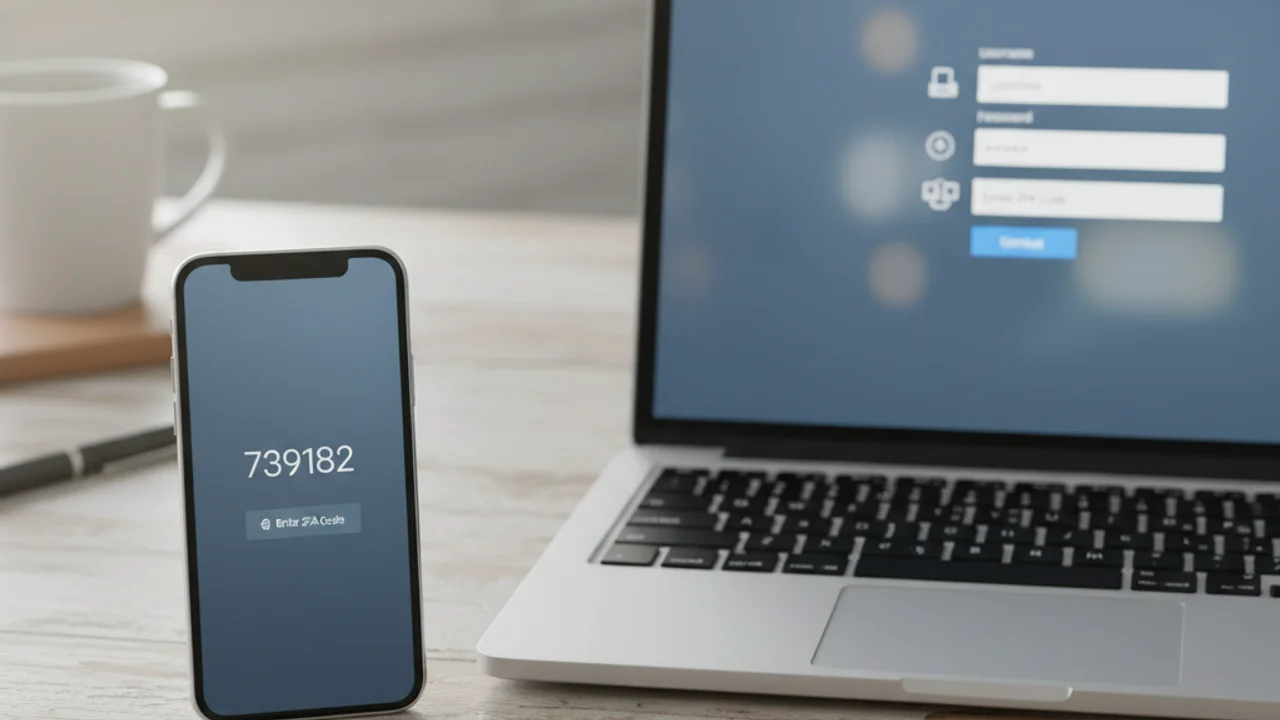
In 2025, Google reported that accounts with two-factor authentication enabled were 99.9 percent less likely to be compromised than those relying on passwords alone. Microsoft published similar findings. Yet despite these staggering numbers, adoption rates remain surprisingly low. Industry surveys suggest that fewer than 30 percent of consumers have enabled 2FA on their most important accounts, and the gap is even wider among older adults and less tech-savvy users.
The reasons for this gap are understandable. Two-factor authentication sounds technical, the setup process varies across platforms, and there is genuine confusion about which method is best. This guide demystifies 2FA completely: what it is, how each type works, how to set it up step by step, and how to handle the "what if I lose my phone" scenario that stops many people from enabling it in the first place.
What Is Two-Factor Authentication and Why Does It Matter
Authentication factors fall into three categories: something you know (a password or PIN), something you have (your phone, a hardware key), and something you are (a fingerprint or face scan). Traditional login uses only the first factor. Two-factor authentication requires two different factors, most commonly a password plus a code generated by or sent to your phone.
The value of 2FA lies in defense in depth. Even if an attacker steals or guesses your password, whether through a data breach, phishing attack, or social engineering manipulation , they still cannot access your account without the second factor. This single additional step blocks the overwhelming majority of account takeover attacks, which is why every major security organization recommends enabling it on all accounts.
How Two-Factor Authentication Works
The basic flow is simple. You enter your username and password as usual. The service then prompts for a second verification, which might be a six-digit code from an authenticator app, a text message with a one-time code, a tap on a hardware security key, or a biometric confirmation on your phone. Once you provide both factors, you are logged in. Many services let you mark trusted devices so you only need the second factor on new or unrecognized devices, reducing friction for your daily routine.
The technical mechanism varies by method, but the security principle is the same: the second factor proves that the person entering the password also physically possesses a specific device. This makes remote attacks dramatically harder because the attacker needs not just your credentials but also physical access to your authentication device.
Types of 2FA: From SMS to Hardware Keys
SMS codes are the most widely available form of 2FA. After entering your password, the service texts a one-time code to your registered phone number. The advantage is simplicity and universal compatibility, since it works with any phone that can receive texts. The disadvantage is vulnerability to SIM swapping, where an attacker convinces your carrier to transfer your phone number to their device, intercepting your codes.
Authenticator apps like Google Authenticator, Authy, and Microsoft Authenticator generate time-based one-time passwords (TOTP) locally on your device. These codes change every 30 seconds and are not transmitted over the cellular network, making them immune to SIM swapping. Authy adds cloud backup and multi-device sync, addressing the recovery concern that stops many people from using authenticator apps.
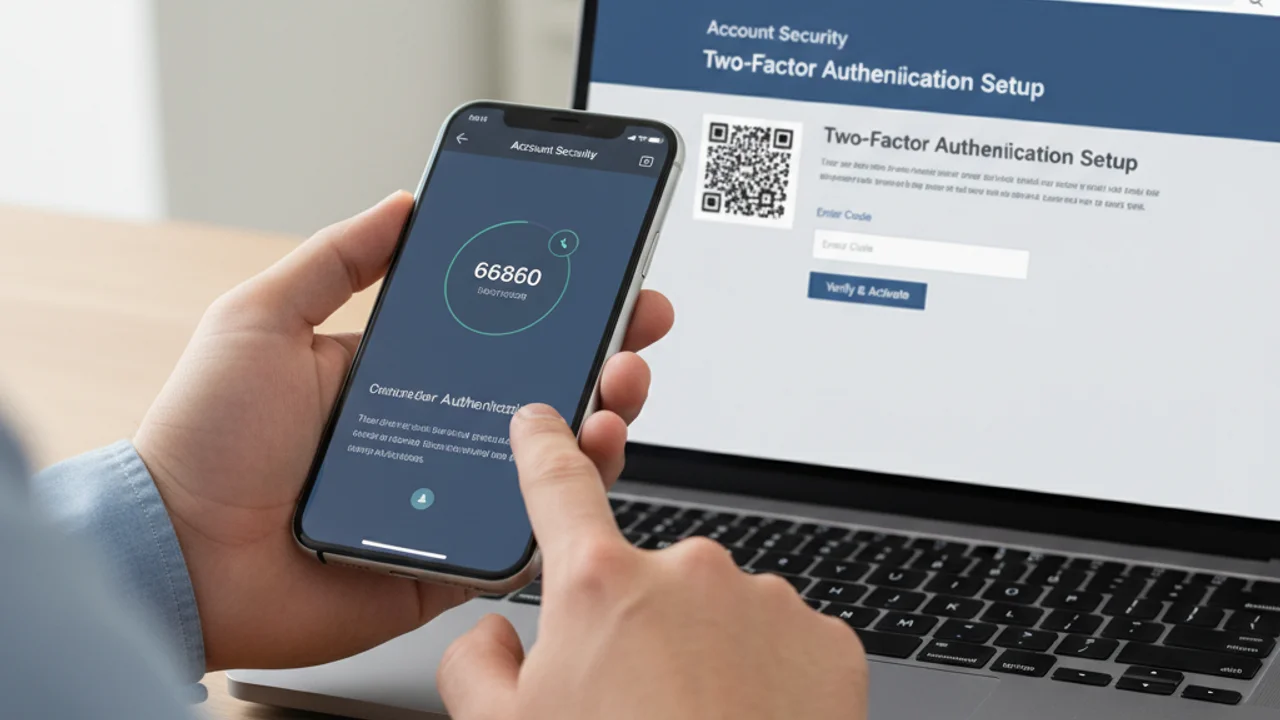
Hardware security keys like YubiKey and Google Titan are physical devices that plug into your USB port or tap via NFC. They use cryptographic challenge-response protocols that are immune to phishing, SIM swapping, and real-time interception. A hardware key is considered the strongest consumer authentication method available, but the cost (around $25 to $50 per key) and the need to carry a physical device limit adoption.
Passkeys, built on the same FIDO2 standard as hardware keys, are rapidly emerging as the best balance of security and convenience. Stored on your phone or computer and unlocked with biometrics, passkeys offer hardware-key-level security without a separate device. For a deeper dive into passkeys and their relationship with passwords, see our guide on password security in 2026 .
Setting Up 2FA on Your Most Important Accounts
Start with your email account. Your email is the master key to your digital life because it is used to reset passwords for virtually every other service. Compromising your email gives an attacker the ability to reset and take over everything else. In Gmail, go to your Google Account settings, select Security, then 2-Step Verification, and follow the setup wizard. For Outlook and other Microsoft accounts, visit account.microsoft.com, select Security, then Advanced security options.
Next, secure your banking and financial accounts. Most banks and investment platforms now offer 2FA through their mobile app, using push notifications or authenticator codes. For social media, enable 2FA in the security settings of each platform: Settings and Privacy on X, Security and Login on Facebook, Security on Instagram, and Privacy and Security on TikTok. The exact menu path varies, but searching "two-factor" or "2FA" in the platform's settings usually takes you directly to the right page.
Getting suspicious 2FA prompts you did not request? Someone may have your password, scan any related messages with Truvizy.
Backup and Recovery: Preparing for the Worst
The number one concern that prevents people from enabling 2FA is fear of being locked out if they lose their phone. This is a legitimate concern, but it has straightforward solutions. When you enable 2FA on any account, the service will offer recovery codes, typically a set of 8 to 10 single-use codes that work even without your phone. Save these codes in your password manager or print them and store them in a secure physical location.
If you use an authenticator app, choose one that supports backup and sync. Authy encrypts and syncs your tokens across multiple devices, so losing one phone does not lock you out. For hardware keys, buy two and register both with your accounts. Keep the second key in a safe location as a backup. These precautions take minutes to set up and eliminate the lockout risk entirely.
How Attackers Try to Bypass 2FA
Understanding how attackers target 2FA helps you choose the right method and stay alert to evolving threats. SIM swapping attacks target SMS-based 2FA by social engineering mobile carrier support staff into transferring your phone number. Real-time phishing proxies present a fake login page that captures both your password and 2FA code simultaneously, relaying them to the real site before the code expires.
Push notification fatigue attacks bombard your authenticator app with login approval requests until you accidentally approve one. If you receive unexpected 2FA prompts, never approve them and change your password immediately. Hardware keys and passkeys are resistant to all of these attacks because they verify the domain cryptographically, making phishing proxies ineffective. They represent the current gold standard for consumer authentication security.
Which 2FA method provides the STRONGEST protection against all known attack types?
- SMS text message codes
- Authenticator app (Google Authenticator, Authy)
- Hardware security key or passkey
- Email-based verification codes
Answer: Hardware security keys and passkeys are resistant to phishing, SIM swapping, and real-time interception because they verify the domain cryptographically. No remote attack method can bypass them.
Beyond 2FA: Building a Complete Security Posture
Two-factor authentication is your strongest single defense against account takeover, but it works best as part of a layered security approach. Combine 2FA with a password manager for unique credentials, breach monitoring for early warning, and scam detection tools for the threats that target you before you even reach a login page. Many account compromises begin not with a direct password attack but with a convincing fake video or message that tricks you into revealing information voluntarily.
Key Takeaways
- Enable 2FA on every account, starting with email and banking, it blocks 99.9% of automated attacks.
- Authenticator apps are more secure than SMS, but any 2FA is vastly better than none.
- Save recovery codes in your password manager to eliminate lockout risk.
- Hardware keys and passkeys are the gold standard, immune to phishing and SIM swapping.
Tools like Truvizy's scanning platform help you catch social engineering and impersonation attacks before they can compromise your credentials. For comprehensive protection that covers your entire family, Truvizy's plans combine AI-powered scam detection with the proactive scanning capabilities that complement strong authentication practices. Together, strong authentication and smart detection create a defense that addresses both the technical and human dimensions of online security.
Layer 2FA with AI-powered scam detection for complete account protection.
Related reading: Phishing Email Detection Guide: Catch credential-stealing emails before they reach you
Related reading: How to Spot Deepfake Videos: Detect AI-generated impersonation content
Related reading: Identity Theft Prevention: 15 steps to protect your personal information
Frequently Asked Questions
What is the difference between 2FA and MFA?
Two-factor authentication (2FA) requires exactly two factors, such as a password plus a code from your phone. Multi-factor authentication (MFA) is the broader term that includes two or more factors. In practice, most consumer implementations use two factors, so the terms are often used interchangeably.
Is SMS-based 2FA still safe to use?
SMS 2FA is significantly safer than no 2FA at all and blocks the vast majority of automated attacks. However, it is vulnerable to SIM swapping attacks where scammers convince your carrier to transfer your number. For high-value accounts, authenticator apps or hardware keys provide stronger protection.
What happens if I lose my phone with my authenticator app?
Most authenticator apps offer backup and recovery options, including cloud sync and recovery codes. When you set up 2FA, always save the backup recovery codes in a secure location like your password manager. Some apps like Authy also support multi-device sync.
Can hackers bypass two-factor authentication?
Sophisticated attackers can bypass SMS-based 2FA through SIM swapping or real-time phishing proxies. Authenticator app codes can be intercepted by real-time phishing. Hardware security keys and passkeys are resistant to all known remote attack methods, making them the gold standard for 2FA.
Which accounts should I enable 2FA on first?
Prioritize your email account (since it is used to reset other passwords), banking and financial accounts, social media accounts, and any account containing sensitive personal information. Then enable it on everything else that supports it.